
Wizard101 on Arch Linux (CachyOS)
Required steps to install and run Wizard101 on Arch Linux (CachyOS) using Wine and the `.deb` package provided by KingsIsle.

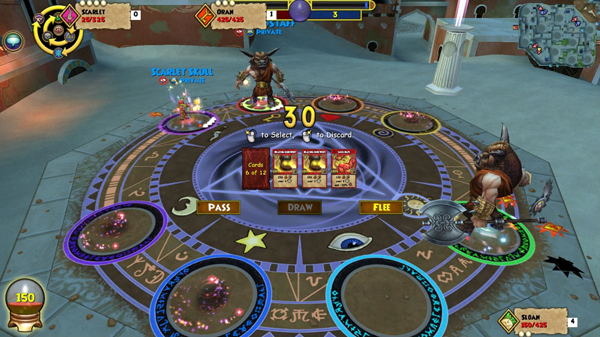
Wizard101 on Arch Linux (CachyOS) via Wine
Required steps to install and run Wizard101 on Arch Linux (CachyOS) using Wine and the .deb (ChromeOS) package provided by KingsIsle.
The converted package leaves behind a broken Wine prefix. On CachyOS, the prefix must be removed and recreated using a standard wineboot --init so that a proper WOW64 environment is generated before restoring the game files.
KingsIsle does not state that Linux supported on their system requirements page:
https://www.wizard101.com/game/systemrequirements
This is an unsupported workaround to use the provided ChromeOS .deb package on Arch Linux. I found this to be highly successful and had no issues with gameplay or performance.
Environment
- OS: Arch Linux / CachyOS
- System Wine installed
- Multilib enabled
Step 1 – Install required 32-bit libraries
Wizard101 is a 32-bit Windows application and requires Wine multilib support.
sudo pacman -S \
  lib32-gnutls \
  lib32-libldap \
  lib32-libpulse \
  lib32-nss \
  lib32-openssl
Step 2 – Convert and install the Wizard101 .deb
Download the Chromebook .deb package from:
https://www.wizard101.com/game/how-to-download#chromebookInstructions
Install and update debtap:
paru debtap
sudo debtap -u
Convert the package:
debtap wizard101_1.26-1.deb
Install the converted package:
sudo pacman -U wizard101-1.26-1-x86_64.pkg.tar.zst
Step 3 – Fix permissions
The package installs into /opt/wizard101 and is root-owned by default.
sudo chown -R $USER:$USER /opt/wizard101
Step 4 – Install winetricks
sudo pacman -S winetricks
Step 5 – Back up Wizard101 game files
The converted package places the Wizard101 files on disk, but the Wine prefix must be rebuilt. Back up the game files before continuing.
mkdir -p /tmp/wizard101-backup
cp -r "/opt/wizard101/support/wizard101/drive_c/ProgramData/KingsIsle Entertainment/Wizard101" /tmp/wizard101-backup/
Step 6 – Remove the broken Wine prefix
rm -rf /opt/wizard101/support/wizard101
Step 7 – Create a clean Wine prefix (WOW64)
On CachyOS, a standard Wine initialization correctly creates a WOW64 prefix. Do not set WINEARCH.
WINEPREFIX=/opt/wizard101/support/wizard101 wineboot --init
Verify that the WOW64 directory exists:
ls /opt/wizard101/support/wizard101/drive_c/windows/syswow64/user32.dll
Step 8 – Restore Wizard101 game files
mkdir -p "/opt/wizard101/support/wizard101/drive_c/ProgramData/KingsIsle Entertainment/"
cp -r /tmp/wizard101-backup/Wizard101 \
  "/opt/wizard101/support/wizard101/drive_c/ProgramData/KingsIsle Entertainment/"
Step 9 – Install required winetricks components
WINEPREFIX=/opt/wizard101/support/wizard101 winetricks -q wininet
WINEPREFIX=/opt/wizard101/support/wizard101 winetricks -q corefonts
Step 10 – Verify Wizard101 executable
ls "/opt/wizard101/support/wizard101/drive_c/ProgramData/KingsIsle Entertainment/Wizard101/Wizard101.exe"
Step 11 – Launch Wizard101
WINEPREFIX="/opt/wizard101/support/wizard101" \
WINEDLLOVERRIDES="wininet=n,b" \
wine "/opt/wizard101/support/wizard101/drive_c/ProgramData/KingsIsle Entertainment/Wizard101/Wizard101.exe"
Step 12 – Create a launcher script
sudo nano /usr/local/bin/wizard101
Paste:
#!/bin/bash
WINEPREFIX="/opt/wizard101/support/wizard101" \
WINEDLLOVERRIDES="wininet=n,b" \
wine "/opt/wizard101/support/wizard101/drive_c/ProgramData/KingsIsle Entertainment/Wizard101/Wizard101.exe"
Make it executable:
sudo chmod +x /usr/local/bin/wizard101
Run:
wizard101